SymplCM Help Center SymplCM Help Center
  • Invoices & Billing
    • Invoice Management
      • How to draft Invoice templates?
      • How to setup Invoice Rules?
      • How Do I Make Changes to an Invoice?
      • Invoicing & Payments
      • How Do I Charge a Guest for Multiple Items on an Invoice?
      • Scheduling Invoices
      • How Do I Request a Partial Payment or Deposit Payment?
      • How to draft Invoice templates?
      • How to setup Invoice Rules?
      • How Do I Make Changes to an Invoice?
      • Invoicing & Payments
      • How Do I Charge a Guest for Multiple Items on an Invoice?
      • Scheduling Invoices
      • How Do I Request a Partial Payment or Deposit Payment?
    • Payment Gateways
      • PayPal
      • Booking.com Card Details Requirement
      • Booking.com and Expedia payment details
      • Payment Rules
      • How Do I Accept Payments Online and Via Credit Card?
      • Stripe
      • PayPal
      • Booking.com Card Details Requirement
      • Booking.com and Expedia payment details
      • Payment Rules
      • How Do I Accept Payments Online and Via Credit Card?
      • Stripe
  • Calendars
    • Creating Hold Events
    • How to Import a Calendar
    • Sympl Calendars Walkthrough
  • Rental Settings
    • How Do I Change My Rental Currency?
    • How Do I Add and Update Rentals?
    • Linking Rentals Together
    • How do I delete rentals?
    • Currencies Supported by Sympl
  • Inquiries & Bookings
    • Guests Information
      • How can I import guests via CSV files?
      • How Do I Add and Update Guests?
      • How Do I Make Notes of Guest Interactions?
      • Guest List Overview
      • How can I import guests via CSV files?
      • How Do I Add and Update Guests?
      • How Do I Make Notes of Guest Interactions?
      • Guest List Overview
    • Inquiries Information
      • How Do I Delete an Inquiry?
      • How Do I Create an Inquiry?
      • Inbox Inquiries Overview
      • How Do I Delete an Inquiry?
      • How Do I Create an Inquiry?
      • Inbox Inquiries Overview
    • How Do I Confirm a Booking?
    • How do I attach a file to a message?
  • Miscellaneous
    • Sympl Setup Checklist
    • Inbox Files Overview
    • Inbox Conversations Overview
    • Shared Content Overview
    • Using Google Translate with Sympl
    • Automations Overview
    • Account Info Overview
    • Migrating from Tokeet to Sympl
    • What are the major differences between TV3 and Sympl?
    • Dashboard Overview
  • Settings & Configurations
    • User Settings & Logins
      • User Type and Permissions Overview
      • I forgot my password, what to do now?
      • Where Can I Find My Sympl Account ID?
      • How Do I Change My Password?
      • How Do I Add and Update Users?
      • Troubleshooting IP Blocked and Account Locked
      • Restricting User Access
      • User Type and Permissions Overview
      • I forgot my password, what to do now?
      • Where Can I Find My Sympl Account ID?
      • How Do I Change My Password?
      • How Do I Add and Update Users?
      • Troubleshooting IP Blocked and Account Locked
      • Restricting User Access
    • Add-Ons & Widgets
      • Add the Inquiry Widget to a Site
      • Add the Calendar Widget to a Site
      • Inquiry Widget Advanced Configuration
      • Add the Inquiry Widget to a Site
      • Add the Calendar Widget to a Site
      • Inquiry Widget Advanced Configuration
    • Multi-Factor Authentication
      • Multi-Factor Authentication (MFA) Overview
      • Multi-Factor Authentication (MFA) FAQs
      • Multi-Factor Authentication (MFA) Overview
      • Multi-Factor Authentication (MFA) FAQs
    • Sympl Subscription & Billing
      • How Do I Cancel My Subscription?
      • How Do I Change My Subscription?
      • How Do I Update My Credit Card Information?
      • How Do I Cancel My Subscription?
      • How Do I Change My Subscription?
      • How Do I Update My Credit Card Information?
    • Templates
      • Templates for Automations
      • Sympl Data Dictionary
      • Custom Branding Templates
      • Templates for Automations
      • Sympl Data Dictionary
      • Custom Branding Templates
    • Integrations
      • Connecting PriceLabs to Sympl
      • How do I connect to MailChimp?
      • Sympl integration with Dropbox
      • Sympl integration with Slack
      • Existing third party integrations
      • Connecting PriceLabs to Sympl
      • How do I connect to MailChimp?
      • Sympl integration with Dropbox
      • Sympl integration with Slack
      • Existing third party integrations
  • Rates Management
    • Pushing rates to Booking.com
    • What is a Dynamic Rate?
    • What is a Base Rate?
    • Changing the Max Guests value on Booking.com
    • Checking Rates for Accuracy
    • Changing the additional guest fee on Booking.com
    • Pushing Rates to API Channels
    • What is a Standard Rate?
    • Rate Types in Sympl
    • My Rates are Too Low on Booking.com
    • My Rates are Too High on Booking.com
    • The Rates Multi-calendar
    • How to Set Day-Specific Pricing
    • Sympl Channel Adjustments
    • What is a Rate Category?
  • Channel Manager
    • iCal Connections
      • What if my channel is not listed in Sympl?
      • Connecting iCal Channels with Sympl
      • Export your Sympl calendar to Holiday Lettings
      • Connecting to FlipKey/TripAdvisor with Sympl
      • Connecting to Homeaway/VRBO with Sympl
      • What if my channel is not listed in Sympl?
      • Connecting iCal Channels with Sympl
      • Export your Sympl calendar to Holiday Lettings
      • Connecting to FlipKey/TripAdvisor with Sympl
      • Connecting to Homeaway/VRBO with Sympl
    • API Connections
      • Booking.com
        • Sympl and Booking.com Best Practices
        • Booking.com Rates & Additional Guest Pricing
        • How to Push Rates to Booking.com
        • Connect to Sympl via the Booking.com Extranet
        • Sending Booking.com messages with Sympl
        • Sympl and Booking.com Best Practices
        • Booking.com Rates & Additional Guest Pricing
        • How to Push Rates to Booking.com
        • Connect to Sympl via the Booking.com Extranet
        • Sending Booking.com messages with Sympl
      • Agoda
        • Connecting Agoda with Sympl
        • Connecting Agoda with Sympl
      • Vrbo
        • VRBO Bed Syncing
        • Connecting the VRBO API to Sympl
        • VRBO FAQ
        • Activating Sympl Rentals on VRBO
        • VRBO Bed Syncing
        • Connecting the VRBO API to Sympl
        • VRBO FAQ
        • Activating Sympl Rentals on VRBO
      • Airbnb
        • Connecting to Airbnb API
        • Create an Airbnb Password (Connection Resolution)
        • Airbnb API FAQ
        • Connecting to Airbnb via iCal
        • Airbnb Rental Listing Requirements
        • How to Refresh Your Airbnb Property List
        • Creating Listings in Airbnb
        • Co-hosting with Airbnb API
        • Connecting to Airbnb API
        • Create an Airbnb Password (Connection Resolution)
        • Airbnb API FAQ
        • Connecting to Airbnb via iCal
        • Airbnb Rental Listing Requirements
        • How to Refresh Your Airbnb Property List
        • Creating Listings in Airbnb
        • Co-hosting with Airbnb API
      • Expedia
        • Connecting Expedia with Sympl
        • Connecting Expedia with Sympl
    • Sympl Channel Manager Overview
    • Disconnect a Channel Account
Channel Manager / API Connections / Expedia / Connecting Expedia with Sympl /
Website Community Login

Connecting Expedia with Sympl

Using Expedia's API connection with Sympl requires that you contact Expedia to request permission for using Tokeet as your channel manager (outlined below). Other than that, you'll find the process to be virtually the same as other API connections. Make note of any limitations in data being transferred over the initial connection (such as initial calendar events/bookings, message history, etc).

1. In Expedia Partner Central

  1. Log in to Expedia Partner Central.

  2. Find "Rooms and Rates" in the left-hand options list, then select "Connectivity Settings"

  3. On the Connectivity Settings page, you'll be able to enter Tokeet in both fields (provider for updating rates & availabilities and provider for receiving reservations).

    If you have trouble with this step, you may also ask Expedia to set this for you. This is done by logging into Expedia Partner Central and sending a message via the Contact Us form.

  4. While you are in Expedia Partner Central, make sure you copy your Hotel ID number from within the dashboard (ex. "ID: 825923").

2. In Sympl

  1. Find the Channels dropdown icon in the main menu bar at the top of your Sympl dashboard. Click to open the dropdown menu, then click the "API Channels" option.

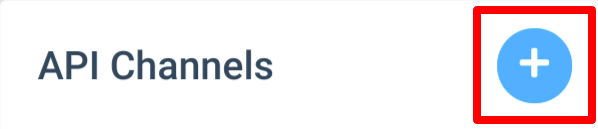
  2. The API Channels page will display a list of your existing API connections on the left hand side. Above this list, you will see a blue circular "+" symbol button - click this to enter the Add Channel Connection window.
  3. Click the "Select Channel" drop-down menu and select "Expedia".
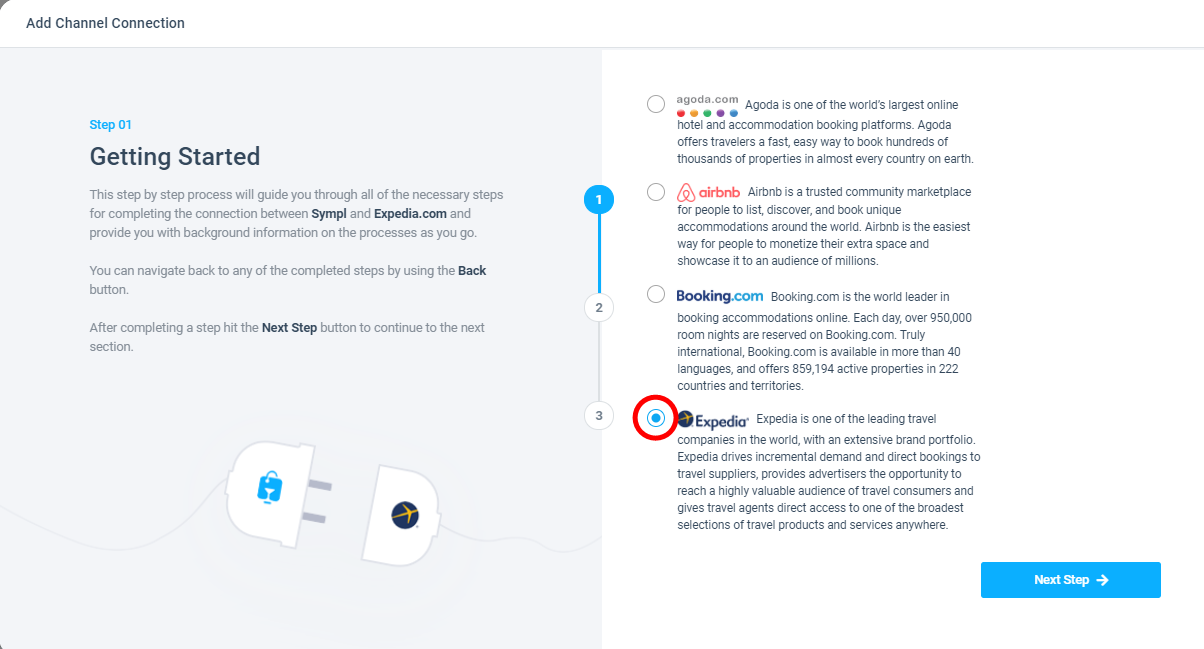
  4. You will now be in the Expedia API Connection Wizard window - step-by-step instructions are included on each page of the walk-through. Simply click "Continue" once you've understood the instructions and performed any required tasks.

  5. The Expedia connection process requires that you already have created a rental property in Sympl (or imported one from Airbnb, or another connection). If you have not already, please do so before you begin the connection wizard steps. You will also need to have your Hotel ID number ready to be entered into the connection wizard (found in the Expedia Partner Central dashboard).

  6. When you reach the end after the connection has been established, you may press "Finished" to complete the process!

If all has gone well, your first Expedia rental will have linked up smoothly with its corresponding Sympl rental property and you'll be ready to start taking bookings!

If you have any questions about the connection process that have not been answered, please feel free to email your support team for help!
How did we do? Thank you! We appreciate your feedback.
Website Community Login
Copyright © 2026 Tokeet Inc.. All Rights Reserved.
No documents match your search.
Searching...